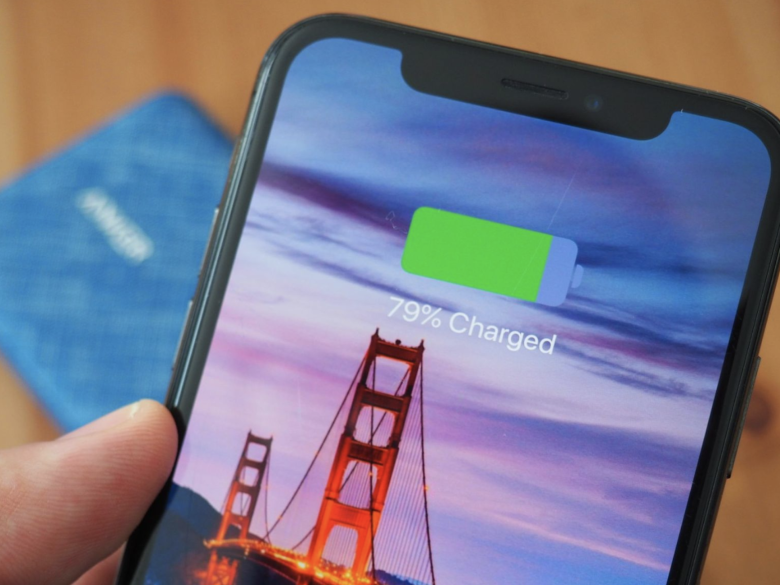
For years, I struggled with devices that wouldn’t hold a charge, charged painfully slowly, or died at the worst possible moments. From smartphones to laptops, battery and charging issues were a constant source of stress. I tried quick fixes, replaced cables, and even bought new chargers—but nothing seemed to work long-term. Eventually, I learned that most battery problems aren’t caused by defective devices—they’re caused by habits and settings that silently drain your battery or damage its lifespan.
In this guide, I’ll share what actually worked for me, step by step, so you can fix your battery issues, extend device life, and stop worrying about charging.
Why Battery & Charging Problems Happen
If your device isn’t charging properly or drains fast, there’s usually a combination of causes:
-
Faulty or incompatible chargers and cables
-
Battery wear over time
-
Background apps consuming power
-
Device settings like brightness, location, or notifications
-
Extreme temperatures affecting battery health
When I first faced these problems, I assumed my phone or laptop was broken. But once I understood the real causes, I realized that with a few simple changes, my devices could last hours longer and charge faster.
Step-by-Step Solutions to Battery & Charging Problems
1. Use the Right Charger and Cable
I learned the hard way that not all chargers are created equal.
-
Original or certified chargers: Using the manufacturer’s charger or certified alternatives ensures correct voltage and prevents damage.
-
Check cable quality: Frayed or cheap cables can slow charging or damage the battery.
-
Avoid fast-charging all the time: Frequent fast charging can generate heat and reduce battery lifespan. Use standard charging when possible.
Example: Switching from a low-quality cable to an original USB-C charger cut my charging time by 30% and prevented random shutdowns.
2. Optimize Device Settings
Your device’s settings can silently drain battery life:
-
Reduce screen brightness: High brightness consumes a lot of power, especially on OLED or LCD screens.
-
Turn off unnecessary features: Bluetooth, Wi-Fi, GPS, and mobile data when not in use can save hours of battery.
-
Enable battery saver modes: Most smartphones and laptops have power-saving options that reduce background activity.
-
Limit push notifications and background apps: Apps constantly syncing emails or updates can quickly drain your battery.
Pro tip: I scheduled “Do Not Disturb” at night and disabled auto-sync for apps I rarely use—it extended my phone’s battery life noticeably.
3. Maintain Healthy Charging Habits
Battery lifespan depends heavily on charging habits. I adopted these strategies:
-
Avoid 0% or 100% extremes: Lithium-ion batteries last longer when kept between 20–80%.
-
Charge slowly overnight: Overnight charging is fine if you use a smart plug or device with auto-stop charging.
-
Remove phone cases during charging: Thick cases can trap heat, reducing battery health.
-
Don’t charge in hot environments: Heat accelerates battery degradation.
4. Keep Devices Cool
Heat is the silent killer of batteries. I noticed my phone’s battery drained faster whenever I used it in direct sunlight or on soft surfaces like beds.
-
Avoid charging on soft surfaces: Use a flat, hard surface.
-
Keep devices ventilated: Laptops especially need airflow to prevent overheating.
-
Don’t overuse heavy apps while charging: Gaming or video editing while charging produces extra heat.
5. Monitor Battery Health and Replace if Needed
Even with the best habits, batteries wear out over time. I learned to check my device’s battery health:
-
Smartphones: Most modern phones show battery health in settings.
-
Laptops: Battery reports (like Windows Battery Report) show capacity over time.
-
Replacement: If health drops below 80%, consider replacing the battery—this restores full functionality.
Real insight: Replacing a worn-out battery can make an old device feel like new. I replaced my 4-year-old laptop battery and instantly gained 3+ hours of extra use.
Practical Tips and Mistakes to Avoid
Tips That Worked for Me
-
Carry a power bank for emergencies: Always have a reliable backup.
-
Use airplane mode for faster charging: Airplane mode reduces background activity, charging devices faster.
-
Update software regularly: Updates often optimize battery performance.
-
Calibrate the battery occasionally: Let your device drain to ~10% and charge to 100% once a month to recalibrate battery sensors.
Mistakes to Avoid
-
Using cheap knockoff chargers: These can overheat batteries and reduce lifespan.
-
Overcharging constantly: Keeping a device plugged in 24/7 without monitoring temperature is harmful.
-
Ignoring battery warnings: Alerts for overheating or low battery should not be ignored.
-
Heavy multitasking while charging: It produces heat and slows charging.
Real-Life Examples
-
Charging Habits: I used to leave my phone on a charger all day. Switching to 20–80% charging and removing the case reduced battery swelling and improved longevity.
-
Device Settings: Turning off location services and background app refresh increased my smartphone usage from 6 hours to 10 hours daily.
-
Battery Replacement: My old tablet seemed unusable until I replaced the battery—performance and battery life improved drastically.
FAQs About Battery & Charging Problems
1. Why does my phone die so quickly even after a full charge?
It could be caused by background apps, outdated software, high screen brightness, or a battery nearing the end of its life.
2. Can I charge my phone overnight safely?
Yes, if your phone has auto-stop charging and you keep it cool. Avoid thick cases that trap heat.
3. How do I know if my battery needs replacement?
Check battery health in settings. If capacity is below 80% or the device shuts down randomly, replacement is recommended.
4. Does fast charging damage the battery?
Frequent fast charging can generate heat and reduce battery lifespan. Use it when necessary, but regular charging is gentler on the battery.
5. Why does my laptop battery drain faster on certain days?
Heavy apps, background processes, Wi-Fi usage, and screen brightness all affect consumption. Monitoring these factors can prevent unexpected drain.
Conclusion: Take Control of Your Battery
Battery and charging problems aren’t inevitable—they’re mostly preventable with the right habits and awareness. From using the correct charger and optimizing device settings to maintaining healthy charging routines and monitoring battery health, small changes make a huge difference.
Once I adopted these steps, my devices lasted longer, charged faster, and rarely left me stranded. By understanding your device, using smart habits, and knowing when a replacement is necessary, you can solve battery and charging problems for good.
Your phone, laptop, and tablet will finally work the way they’re supposed to—reliable, fast, and always ready when you need them.